SeaReady app · Inspection prep
My inspections
Plan every inspection coming up — SIRE, CDI, RightShip, OVID, BIQ5, PSC with its MoU, Flag, Class — each with its own readiness, and keep the record after.
Updated 2026-10-11 · SeaReady’s own words. The app changes often — if a screen looks different from this page, tell us from Help → Suggest an improvement.
What it is for
A ship is often getting ready for more than one inspection at a time — a SIRE 2.0 next week and Port State Control at the next port, or SIRE and CDI on a chemical tanker. "My inspections" is the list of all of them. Each one has its type (for PSC also the MoU: Paris MoU, Tokyo MOU, US Coast Guard and the others), its date, its port and a status: planned, active, done or cancelled.
Every planned or active inspection gets its own readiness card on the dashboard and its own place in the zone walk. The readiness is worked out from that inspection’s own checklist for your ship type — the SIRE chapters, the CDI areas, the RightShip sections, the PSC lists (plus the running CIC for the MoUs and dates it covers), and so on.
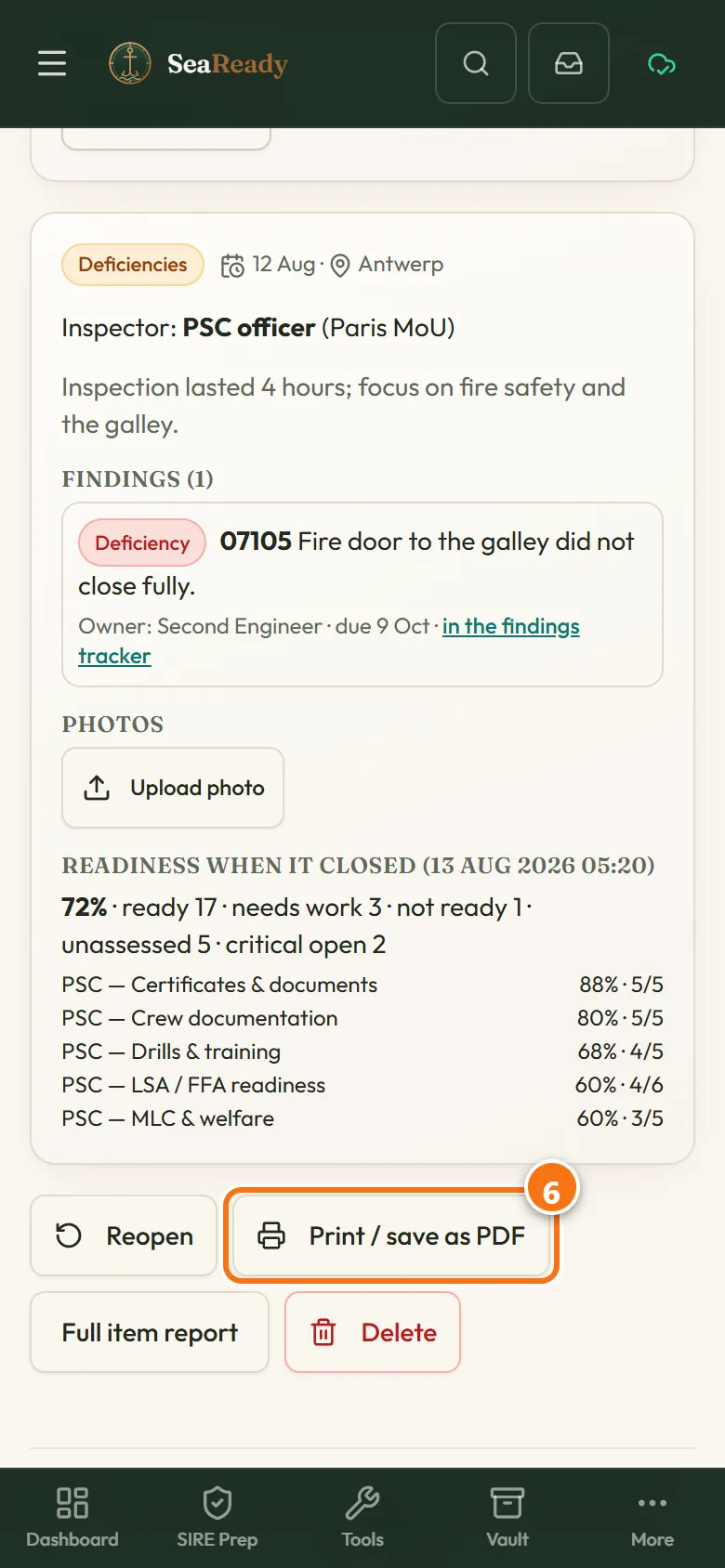
When an inspection is over, the Master saves the record: the outcome, the inspector, the observations or deficiencies (each one goes into the findings tracker with an owner and a due date), photos of the report, and the readiness on that day with every item’s status and who checked it when. Records are kept for 3 years and can be printed or saved as a PDF.
Who can use it
Everyone can see the list and add or change a planned inspection. Only the Master closes, cancels, reopens or deletes one, and only the Master changes a saved record. On a personal plan (no ship licence) the person who added an inspection can also close and delete it. The server checks these rules, so a change from any other phone is put back.
Step by step
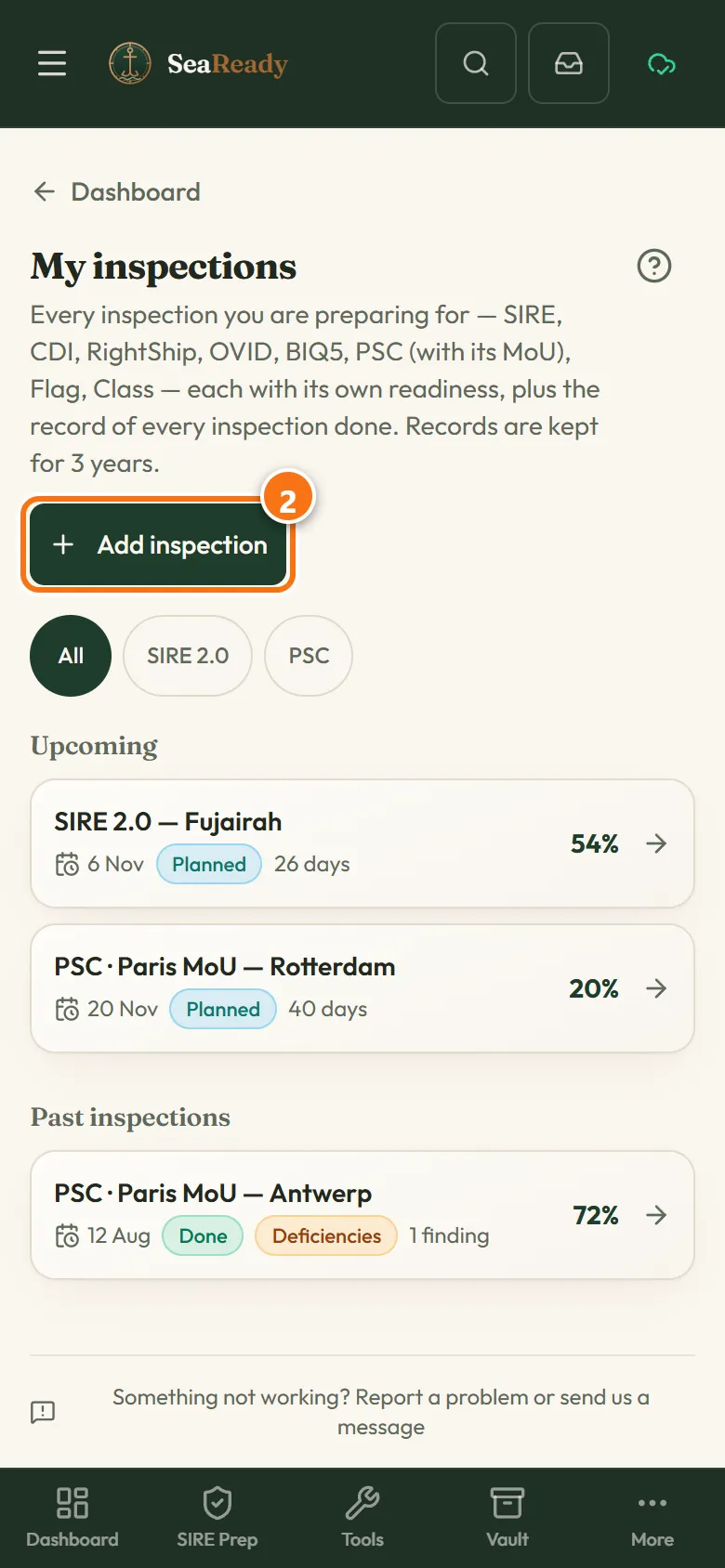
- Open "My inspections" from the Inspection prep menu, or tap "Add inspection" on the dashboard.
- Tap "Add inspection". The chips at the top suggest the usual inspections for your ship type (for example SIRE 2.0, CDI and PSC on a chemical tanker) — tap one, or pick any type in "Type". For PSC pick the MoU. Enter the expected date and the port and tap "Add".
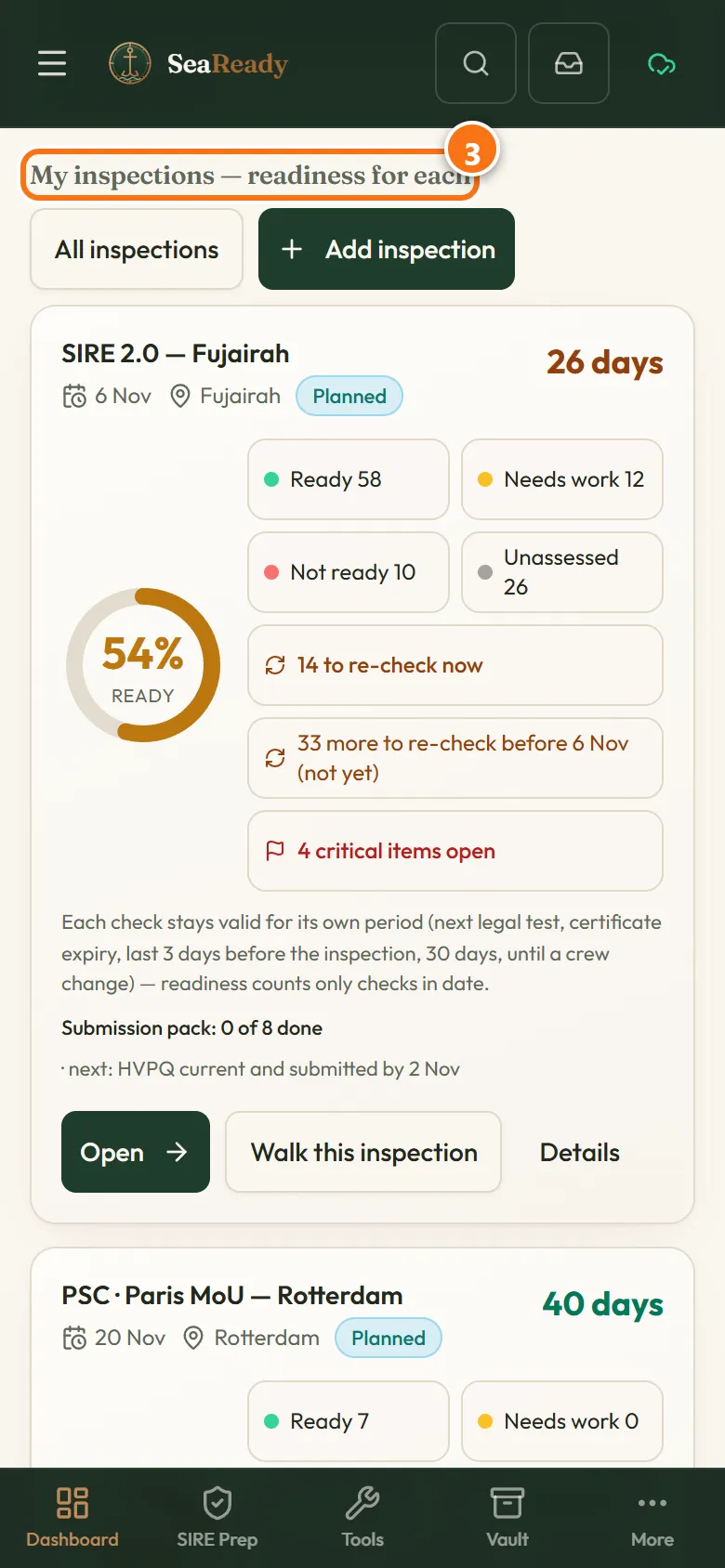
- Back on the dashboard each inspection has a card: its readiness %, Ready, Needs work, Not ready and Unassessed counts, how many answers need a re-check, critical items open, the days to go and the port. "Open" goes to its checklist, "Zone walk" walks the ship for it, "Details" opens its page.
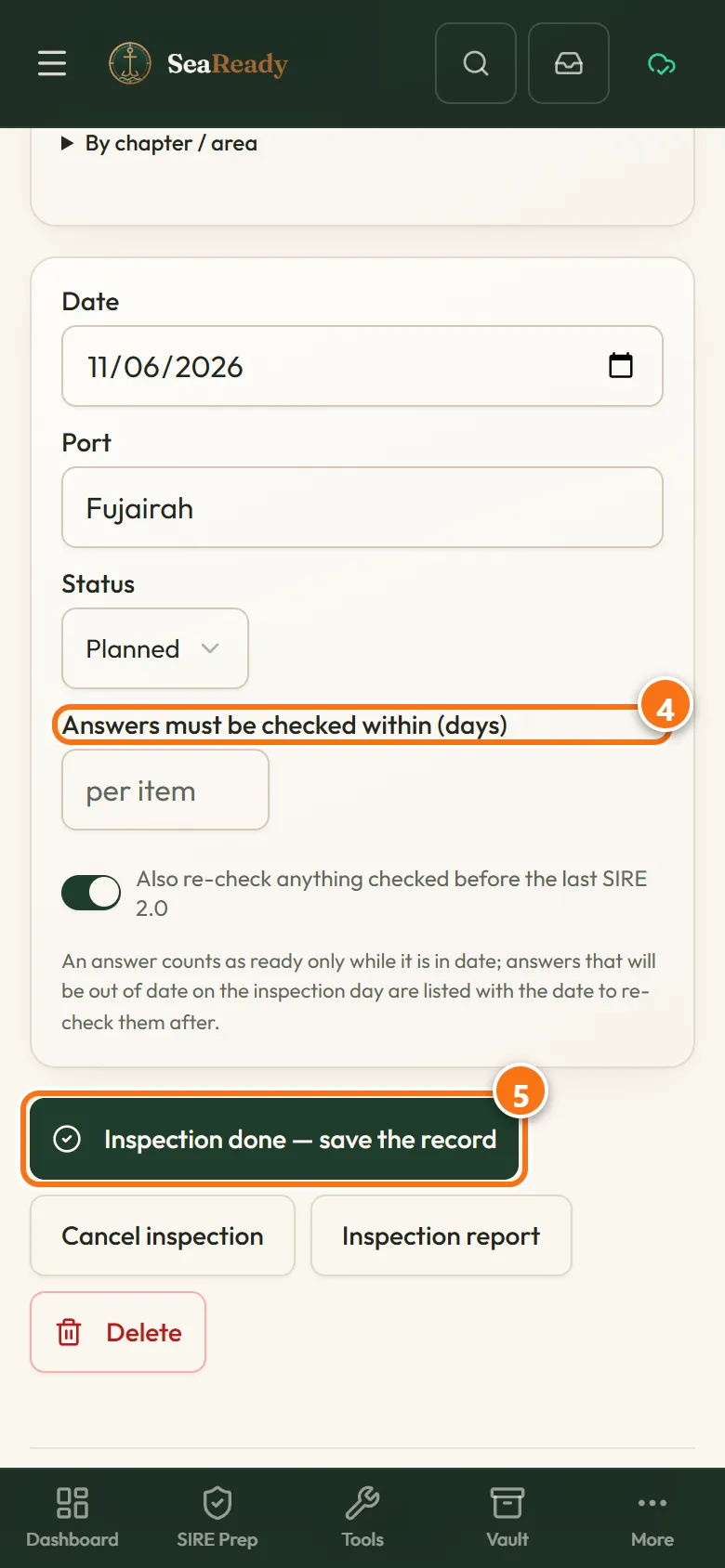
- Every check stays valid for as long as that kind of item allows, and the item says why: a test or drill with a legal interval until the next one is due (fire and abandon-ship drills monthly, enclosed space every 2 months, emergency steering every 3 months…), a certificate or record while the certificate is valid (90 days if we do not know its expiry), crew knowledge until a crew change (120 days while no crew change is recorded), photos 6 months, condition-on-the-day items (appearance, housekeeping, fire doors, pre-arrival tests) in the last 3 days before the inspection, and routine items 30 days. Each item shows "Checked 12 Oct by C/O A. Demo · valid until 11 Nov (reason)". The Master can set one period for an inspection instead ("Answers must be checked within … days"). An answer past its date shows an amber "Re-check" and does not count as ready; one that is valid today but not on the inspection day says "Re-check from <date>" and is not counted as a re-check until that date comes. Tap "Still OK — re-checked today" or change the answer.
- Tap any count on a card ("12 to re-check before 2 Nov", "3 critical items open", "Not ready", "Needs work", "Unassessed") to open exactly those items, grouped by zone; the list shrinks as you deal with them and says "All re-checked" at the end. "Walk this inspection" opens the zone walk for that inspection only.
- Every item says who it is for — its chapter owner by default ("For: C/E or 2/E"). The Master, or the owner of that chapter, taps "Assign" on an item, "Assign all…" on a list (for example the 12 to re-check) or "Assign everything here" on a zone, picks the rank (and a name if wanted), a due date and a note. The person sees them under "For me" on the dashboard, can change those answers for that inspection, and gets an inbox message when the Master assigns. The card shows progress per person ("C/E 9 of 12 done"), overdue in red.
- When the inspector has gone, the Master taps "Inspection done — save the record": pick the outcome (Clean, Observations, Deficiencies or Detained), enter the inspector, organisation, date, port and notes, tap "Add" for each observation or deficiency (owner rank and due date), attach photos and tap "Save the record".
- Open "Past inspections" to read any record, filter the list by type, and tap "Print / save as PDF" for a copy with every date and name.
Tips
- Answer once, count everywhere: when the same check appears in two inspections (for example the certificates in SIRE and in PSC) an answer in one counts in the other. The item says "Also counts for: PSC" or "Counted from SIRE 2.1"; an answer given in the other checklist itself is never overwritten.
- The next inspection of the same type starts from your latest answers — nothing is wiped. Items changed since the last inspection say so in the zone walk.
- Every answer shows when it was last checked and by whom ("Checked 12 Oct 2026 14:32 by C/O A. Demo"). Answers saved before this was recorded say "Date not recorded" and count as needing a re-check.
What the inspector looks for
- Inspectors and PSC officers ask when a check was last done and by whom. The dated line on every item and the saved record of the last inspection answer both questions on the spot.
- Repeat findings are the ones that hurt most. The record links each finding to the tracker, so the close-out evidence is ready when the same inspection comes round again.
Limits and good to know
- Records are kept for 3 years, like the rest of the ship’s history; up to 200 inspections are kept on a ship. Photos follow the photo rules of your plan.
- "Other" inspections have no checklist of their own — keep notes and the result on their page. Flag and Class inspections use the PSC lists.
- On a ship the list travels in the ship’s file through the SeaReady server over the ship’s Wi-Fi whenever it has internet and in port; without a ship it syncs between your own devices on paid plans.
Related pages
- DashboardYour readiness score, the countdown to the next inspection, what is due and the tools picked for your rank, all on one screen.
- Zone walkSelf-inspect the ship zone by zone in the order an inspector walks it, with an 11th-hour mode for the last 24 to 48 hours before port.
- Inspection checklistsAnswer SIRE 2.0, CDI, RightShip, OVID or BIQ5 questions as Ready, Needs work or Not ready, with notes, photos, voice notes and a critical flag.
- Findings trackerPaste the last SIRE, RightShip or PSC report, split it into findings and close each one with an owner, a date and photos; repeats are flagged.
- PSC readinessPSC prep for your ship type: 24 deficiency areas, the Demonstrate tests and your ship-type pack, each on its own page like SIRE.
- Inspection reportPrint or save a photo-backed report of your preparation state for the whole ship, one zone or one chapter, with a readiness score and sign-off lines.
Use it in the app
The same page sits inside SeaReady under Help → Handbook and behind the “?” in the screen’s header, and it reads offline at sea.
More in Inspection prep
- Inspection checklistsAnswer SIRE 2.0, CDI, RightShip, OVID or BIQ5 questions as Ready, Needs work or Not ready, with notes, photos, voice notes and a critical flag.
- BIQ5 barge prepEvery official BIQ5 barge inspection question for your barge type, in 13 chapters, with dated answers, the pre-inspection pack and a mock barge inspector.
- Zone walkSelf-inspect the ship zone by zone in the order an inspector walks it, with an 11th-hour mode for the last 24 to 48 hours before port.
- Photo repositoryKeep the OCIMF photo set current: 36 numbered positions (42 for shuttle tankers), a 6-month refresh cycle, shot guides and a self-audit.
- Inspection reportPrint or save a photo-backed report of your preparation state for the whole ship, one zone or one chapter, with a readiness score and sign-off lines.
- Submission packTick off what the vetting scheme expects before the inspector boards, with every deadline counted back from your inspection date.
- PIQ / HVPQ wizardPrepare the pre-inspection declarations with trap warnings at every step, so you never declare something you cannot prove on board.
- Defence packThe "prove it" bundle: readiness, certificates, conditions of class, drills, PSC history, photo status and open observations in one PDF.
- Mock inspectorRehearse the inspector’s interview for your rank — offline practice for everyone, the AI inspector with scores and a readiness PDF on paid plans.
- ObservationsWork each inspection observation properly: five whys, human factors, the four-part response and the 14-day countdown to reply.
- Findings trackerPaste the last SIRE, RightShip or PSC report, split it into findings and close each one with an owner, a date and photos; repeats are flagged.
- PSC readinessPSC prep for your ship type: 24 deficiency areas, the Demonstrate tests and your ship-type pack, each on its own page like SIRE.
- Next-port PSCPick your next port: its PSC regime and campaign, what its inspectors find most, your risk profile, when PSC is due and a riskiest-first order.
- USCG prepUS Coast Guard port state control for a foreign ship calling the USA: how ships are picked, the 96-hour notice, ballast, fuel, security and the exam.
- CIC campaign modeThe Port State Control campaigns running now: every official question on its own answer card, with notes, photos, dated checks and a printable pack.
- Campaign trackerOCIMF focused campaigns and PSC concentrated inspection campaigns: every official question answered like SIRE 2.0, dated, with detention warnings.