SeaReady app · Ship & crew
Fill in, sign and print a checklist
Fill in a checklist one section at a time, raise findings from bad answers, sign on your own phone, print the record and see its history.
Updated 2026-10-11 · SeaReady’s own words. The app changes often — if a screen looks different from this page, tell us from Help → Suggest an improvement.
What it is for
Filling in a checklist makes a record: every answer with who gave it and when, notes, photos, findings raised from bad answers, and the signatures. The record can be printed, and it stays in the checklist’s history.
Who can use it
Everyone. On a ship, everyone aboard can fill in and sign the ship’s checklists. Only the Master voids or reopens a finished ship record. An open record can be deleted by the person who started it or by the Master.
Step by step
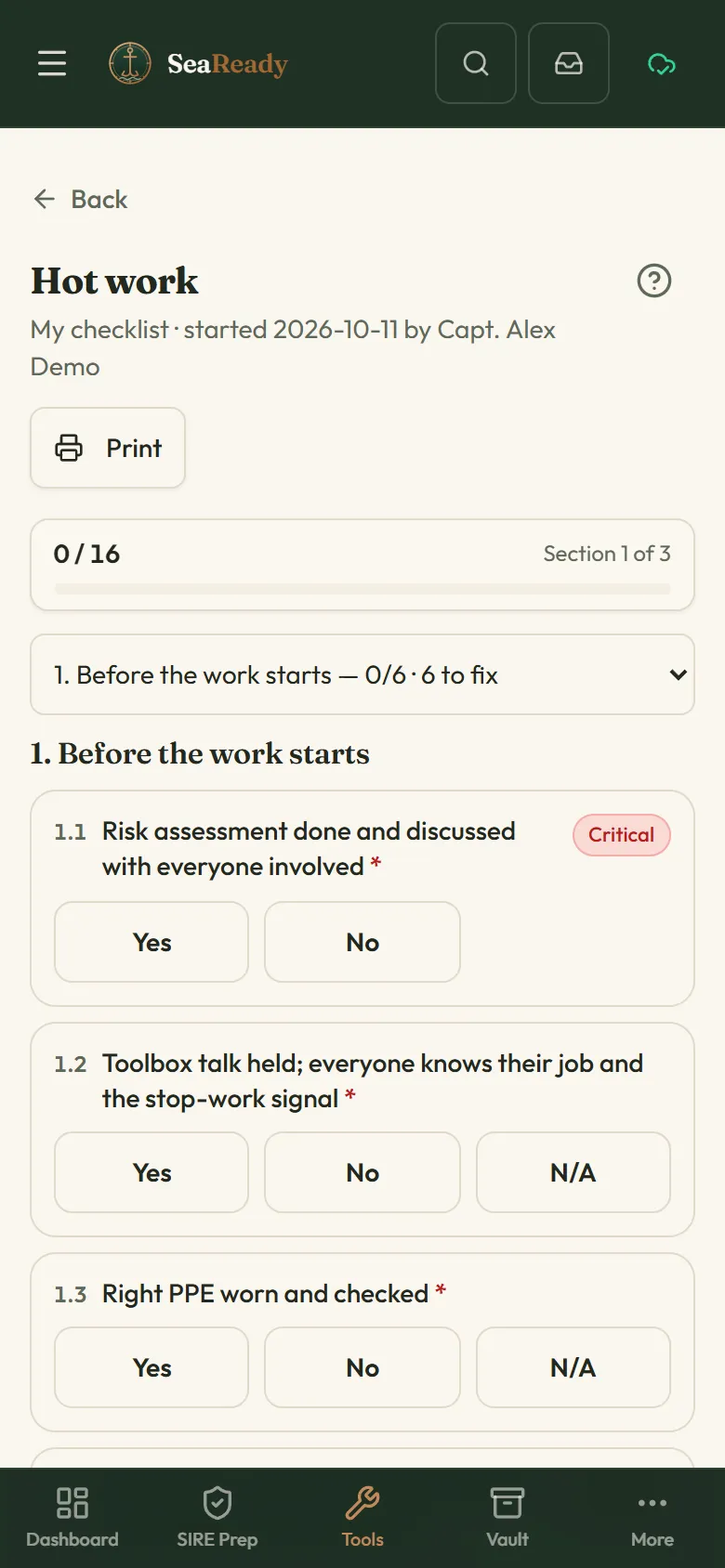
- Open a checklist and tap "Start" (or "Continue the open one"). Answer each section and tap "Next section"; "Previous" goes back.
- A bad answer turns red and asks for what the checklist needs: a note, a photo or a finding. "Raise finding" puts it in the Findings tracker with copies of the photos.
- Tap "Finish" when everything is answered — if something is missing, the list shows what.
- Sign under "Signatures". Everyone signs as themselves on their own phone: the record reaches the other phones with the ship file, and the next person opens it and signs there. A signature always carries the name and rank of the person signed in on that phone, and only the ship’s Master signs as "Master". The record shows as signed off once every signature it needs is there.
- Tap "Print" for a clean record with the photos and signatures. A finished drill checklist offers "Add to the drill log".
- Open the checklist and tap "History" to see its records over any dates, or download the "History PDF".
Tips
- You can stop half-way: the record stays open on the phone and "Continue the open one" takes you back to the first unanswered section.
- Made a mistake on a finished ship record? Ask the Master: only the Master can reopen it or mark it void with a reason (a void record stays in the history).
What the inspector looks for
- A record signed by the right ranks, dated, with photos of bad findings and the findings raised from them.
Limits and good to know
- Filling in works offline. Ship records reach the other phones through our server when the ship’s Wi-Fi has internet; the ship file keeps the last 7 days of finished records (and the latest of each checklist), older ones move to our server for 3 years and appear under "History" when the phone is online.
- Our server checks every ship record: answers and signatures are stamped with the person signed in, a record only counts as signed off when its sign-off rule is met, and finished records can only be changed by the Master.
- Free plan: printing a record uses one of the 3 free prints a month (with the SeaReady mark); no history PDF.
Related pages
- Checklists (your own and the ship’s)Build checklists, let SeaReady AI turn your company form into one or take a ready-made one; fill them in on the phone and see what is due.
- Findings trackerPaste the last SIRE, RightShip or PSC report, split it into findings and close each one with an owner, a date and photos; repeats are flagged.
- DrillsPlan drills by SOLAS interval, rotate scenarios, and record muster times, debriefs and the lessons learned the inspector asks about.
- Master’s crew board (checklists)For the Master: every ship checklist with last done, by whom, next due and open failed items, and each person’s records and signatures.
Use it in the app
The same page sits inside SeaReady under Help → Handbook and behind the “?” in the screen’s header, and it reads offline at sea.
More in Ship & crew
- Checklists (your own and the ship’s)Build checklists, let SeaReady AI turn your company form into one or take a ready-made one; fill them in on the phone and see what is due.
- Build your own checklistSections, questions and answer types, limits, what a bad answer needs, follow-up questions, how often it is due and who signs.
- Turn a company form into a checklistGive SeaReady AI a Word, Excel, CSV or PDF form, photos of a paper form or pasted text and check the labelled draft it makes.
- Master’s crew board (checklists)For the Master: every ship checklist with last done, by whom, next due and open failed items, and each person’s records and signatures.
- Ready-made checklists (library)Over 150 ready-made ship checklists in 15 groups, in our own words with the official reference: copy one, change it, schedule it and sign it.
- MessagesAnnouncements from your Master and messages from SeaReady in one inbox that reads offline, with read receipts and sign-to-acknowledge.
- Certificate vaultKeep every ship certificate, condition of class and crew document with expiry countdowns, and print the inspector-ready list.
- Rest hoursRecord your rest hours in ship’s time, see STCW/MLC breaches at once and print the record the inspector asks for.
- DrillsPlan drills by SOLAS interval, rotate scenarios, and record muster times, debriefs and the lessons learned the inspector asks about.
- Crew training progressOn a ship licence the Master sees what each crew member has practised and prints it for the inspector; everyone else sees their own.
- HandoverWrite structured relief notes in four sections; open observations, expiring certificates and conditions of class are added automatically.
- Catch up (welcome back)Back after weeks away? See your role now, what changed, what is out of date, re-check old answers and get a fresh readiness score.
- Your ship (Settings → Ship)Set up or join your ship in Settings: join codes, ranks and rights, seats, handover, the company licence and crew groups on personal plans.
- LSA / FFA service trackerKeep the service and expiry dates of liferafts, extinguishers, EPIRB, SCBA and pyrotechnics in one list with a 30-day countdown.
- Bunkering checklistTick through the before, during and after checks of a bunkering operation, note the grades and barge, and reset for the next one.
- Mooring line logRecord every mooring line and tail with its certificate, use, inspections and retirement limits, and get warned before a limit is passed.
- Ship/shore safety checklistPrepare for the ship/shore safety checklist part by part before the terminal arrives, with remarks per part and a print-out.
- Permits, RA & toolbox talksFill in a permit to work, a 5 by 5 risk assessment or a toolbox talk on the phone, sign on the screen and print it for the file.
- Oil Record Book codesPick the engine-room operation you did and see the Oil Record Book Part I code letter, item numbers and the shape of the entry.
- Running hoursLog the running hours of each machine and its service tasks, and see what is due next by hours or by calendar.
- Nameplate troubleshooterPhotograph a machine nameplate and the AI tells you what the machine is, its ratings and its common faults.
- Printable permitsClean paper templates for enclosed space entry, hot work, working aloft and a near-miss report, with your ship name on top.
- Medicine chest guidesLinks to the two trusted medical guides for ships and a reminder of how to reach a Radio Medical doctor. No medical advice.
- Weather & portsA 3-day wind, wave and swell forecast for any port or position, kept on the phone for offline use, plus links to official ship records.