SeaReady app · Ship & crew
Checklists (your own and the ship’s)
Build checklists, let SeaReady AI turn your company form into one or take a ready-made one; fill them in on the phone and see what is due.
Updated 2026-10-11 · SeaReady’s own words. The app changes often — if a screen looks different from this page, tell us from Help → Suggest an improvement.
What it is for
Checklists keeps the checklists you use on board in one place: your own, built from scratch or made by SeaReady AI from your company’s form; ready-made ones from the SeaReady library; and the ship’s, shared with everyone aboard. You fill them in on the phone one section at a time, with photos, notes and signatures, print a clean record, and the app shows what is due and what is overdue.
This page is the overview. Each part has its own page: building your own checklist, turning a company form into one with SeaReady AI, filling in, signing and printing, the ready-made library, and the Master’s crew board.
Who can use it
Everyone. Free plan: up to 3 checklists of your own and the first 3 ready-made checklists in each library group, filled in as often as you like on the phone. Crew, Officer Pro, the 14-day trial and the ship licence: as many as you need, kept on all your own phones, the whole library, plus AI form conversion, the history PDF and e-mail reminders. Sharing a checklist with the whole ship needs Officer Pro, the trial or a ship licence; on a ship the Master, Chief Officer and Chief Engineer change the ship’s checklists, and the Master can add anyone under “Also allowed to edit”.
Step by step
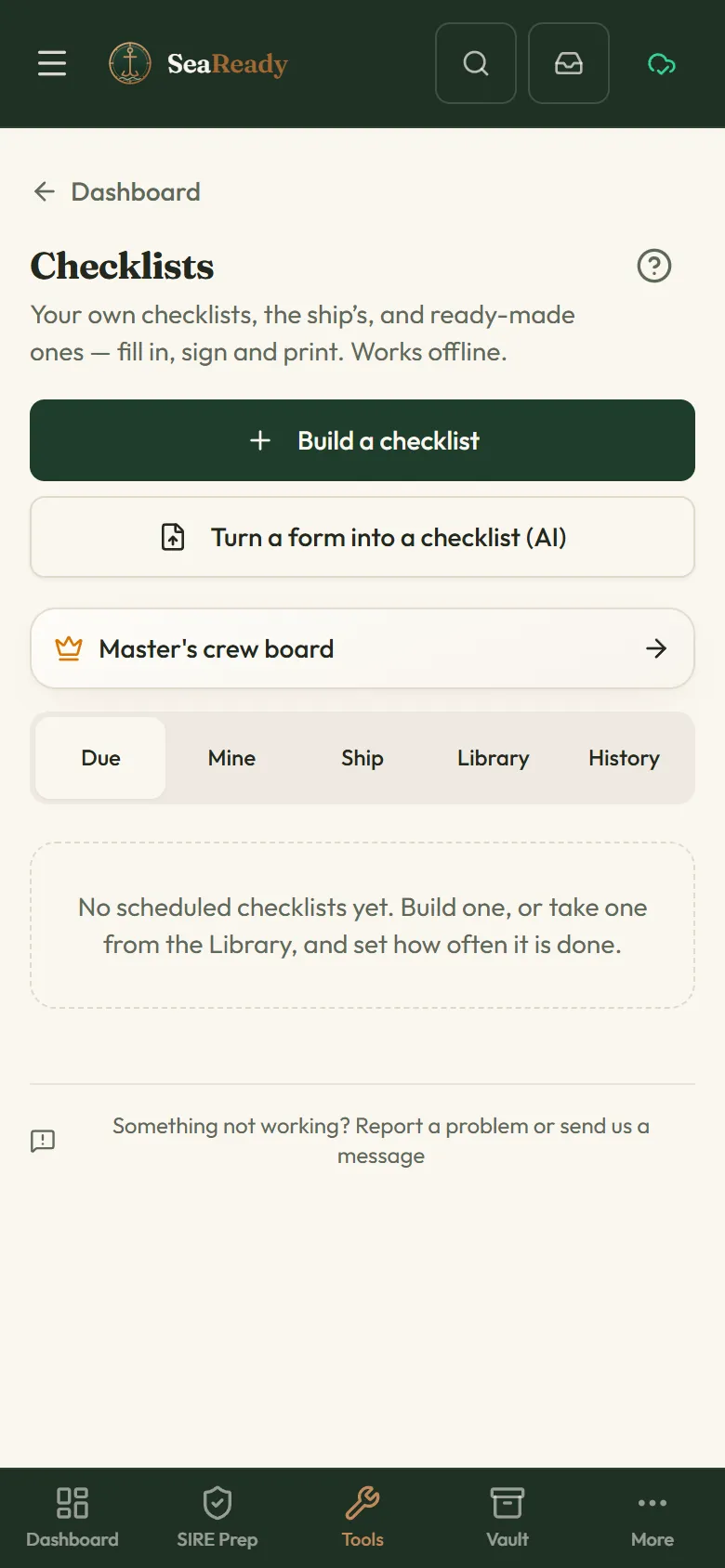
- Open "Checklists" from the Ship & crew menu. The tabs are "Due" (overdue, due now, due soon, and what to do before departure or arrival), "Mine", "Ship", "Library" and "History".
- Get a checklist: tap "Build a checklist", "Turn a form into a checklist (AI)", or open the "Library" tab and tap "Use" on a ready-made one.
- Open a checklist and tap "Start". Answer section by section, tap "Finish", sign, and print the record if you need paper.
- Set "How often" on each checklist so the "Due" tab, the Dashboard card "Checklists due" and the e-mail reminders know when it is next due.
- On a ship, "Share to ship" puts a copy in the ship file for everyone aboard; the Master follows it all on the "Master’s crew board".
Tips
- Start with the checklists your inspectors ask about most, then add your company forms one by one.
- Changing a checklist makes a new version; records already started keep the questions they started with.
What the inspector looks for
- Signed, dated records with photos for routine checks, done on time, and a clear trail from a failed item to a raised finding and its close-out.
Limits and good to know
- Free plan: up to 3 checklists of your own (after a downgrade your 3 oldest stay usable; the rest become read-only, nothing is deleted) and the first 3 ready-made checklists in each library group; filling in is unlimited and photos stay on the phone; printing one record uses one of the 3 free prints a month (with the SeaReady mark); no AI form conversion, history PDF or e-mail reminders. Due and overdue show in the app on every plan.
- Crew: as many of your own checklists as you need, kept on all your own phones; photos in your own cloud space (500 MB); AI form conversion; history PDF; e-mail reminders. Officer Pro and the trial add "Share to ship". Ship licence: ship checklists for everyone aboard, photos in the ship’s cloud space (2 GB), records kept for 3 years.
- Everything works offline and is kept on the phone. Ship checklists and their records reach the other phones through our server when the ship’s Wi-Fi has internet — never phone to phone.
- E-mail reminders cover checklists due monthly or less often; daily and weekly ones show in the app only.
- Your own checklists are seen only by you until you share one with the ship.
Related pages
- Build your own checklistSections, questions and answer types, limits, what a bad answer needs, follow-up questions, how often it is due and who signs.
- Turn a company form into a checklistGive SeaReady AI a Word, Excel, CSV or PDF form, photos of a paper form or pasted text and check the labelled draft it makes.
- Fill in, sign and print a checklistFill in a checklist one section at a time, raise findings from bad answers, sign on your own phone, print the record and see its history.
- Ready-made checklists (library)Over 150 ready-made ship checklists in 15 groups, in our own words with the official reference: copy one, change it, schedule it and sign it.
- Master’s crew board (checklists)For the Master: every ship checklist with last done, by whom, next due and open failed items, and each person’s records and signatures.
- Findings trackerPaste the last SIRE, RightShip or PSC report, split it into findings and close each one with an owner, a date and photos; repeats are flagged.
Use it in the app
The same page sits inside SeaReady under Help → Handbook and behind the “?” in the screen’s header, and it reads offline at sea.
More in Ship & crew
- Build your own checklistSections, questions and answer types, limits, what a bad answer needs, follow-up questions, how often it is due and who signs.
- Turn a company form into a checklistGive SeaReady AI a Word, Excel, CSV or PDF form, photos of a paper form or pasted text and check the labelled draft it makes.
- Fill in, sign and print a checklistFill in a checklist one section at a time, raise findings from bad answers, sign on your own phone, print the record and see its history.
- Master’s crew board (checklists)For the Master: every ship checklist with last done, by whom, next due and open failed items, and each person’s records and signatures.
- Ready-made checklists (library)Over 150 ready-made ship checklists in 15 groups, in our own words with the official reference: copy one, change it, schedule it and sign it.
- MessagesAnnouncements from your Master and messages from SeaReady in one inbox that reads offline, with read receipts and sign-to-acknowledge.
- Certificate vaultKeep every ship certificate, condition of class and crew document with expiry countdowns, and print the inspector-ready list.
- Rest hoursRecord your rest hours in ship’s time, see STCW/MLC breaches at once and print the record the inspector asks for.
- DrillsPlan drills by SOLAS interval, rotate scenarios, and record muster times, debriefs and the lessons learned the inspector asks about.
- Crew training progressOn a ship licence the Master sees what each crew member has practised and prints it for the inspector; everyone else sees their own.
- HandoverWrite structured relief notes in four sections; open observations, expiring certificates and conditions of class are added automatically.
- Catch up (welcome back)Back after weeks away? See your role now, what changed, what is out of date, re-check old answers and get a fresh readiness score.
- Your ship (Settings → Ship)Set up or join your ship in Settings: join codes, ranks and rights, seats, handover, the company licence and crew groups on personal plans.
- LSA / FFA service trackerKeep the service and expiry dates of liferafts, extinguishers, EPIRB, SCBA and pyrotechnics in one list with a 30-day countdown.
- Bunkering checklistTick through the before, during and after checks of a bunkering operation, note the grades and barge, and reset for the next one.
- Mooring line logRecord every mooring line and tail with its certificate, use, inspections and retirement limits, and get warned before a limit is passed.
- Ship/shore safety checklistPrepare for the ship/shore safety checklist part by part before the terminal arrives, with remarks per part and a print-out.
- Permits, RA & toolbox talksFill in a permit to work, a 5 by 5 risk assessment or a toolbox talk on the phone, sign on the screen and print it for the file.
- Oil Record Book codesPick the engine-room operation you did and see the Oil Record Book Part I code letter, item numbers and the shape of the entry.
- Running hoursLog the running hours of each machine and its service tasks, and see what is due next by hours or by calendar.
- Nameplate troubleshooterPhotograph a machine nameplate and the AI tells you what the machine is, its ratings and its common faults.
- Printable permitsClean paper templates for enclosed space entry, hot work, working aloft and a near-miss report, with your ship name on top.
- Medicine chest guidesLinks to the two trusted medical guides for ships and a reminder of how to reach a Radio Medical doctor. No medical advice.
- Weather & portsA 3-day wind, wave and swell forecast for any port or position, kept on the phone for offline use, plus links to official ship records.