SeaReady app · Ship & crew
Hazard report QR
QR posters on board let anyone report a hazard or near miss without logging in; the Master collects accepted reports into dated findings.
Updated 2026-10-11 · SeaReady’s own words. The app changes often — if a screen looks different from this page, tell us from Help → Suggest an improvement.
What it is for
Hazard report QR lets anyone on board tell the Master about something unsafe — a leak, a loose grating, a missing guard, a near miss — by scanning a poster with their phone camera. There is no app to install and no account: the scan opens a short form in the phone’s browser.
The Master makes one QR code per place (for example the gangway, the mess room and the engine control room) and prints an A5 poster for each. The place fills in "Where?" on the form, so people only write what they saw, choose how serious it is, and can add a photo.
Accepted reports are collected while the Master has that ship selected and online. Each becomes a finding in the Master’s Findings tracker — source "Hazard report", category "Near miss / hazard", owner Master — with its photo, and the Master’s phone shows a notice when one arrives. The original receipt time and the dated import record identify when it arrived and who collected it. The queue retains it until the shared finding and photo references are confirmed. It then follows the normal ship-file visibility and close-out process.
Who can use it
Making codes: the Master on a ship licence or trial, or with their own Officer Pro plan. Reading existing reports for that ship: the Master. Sending a report: anyone with a phone and internet, with or without SeaReady.
Step by step
- Open "Hazard report QR" from the Ship & crew tools (or the link at the top of the Findings tracker).
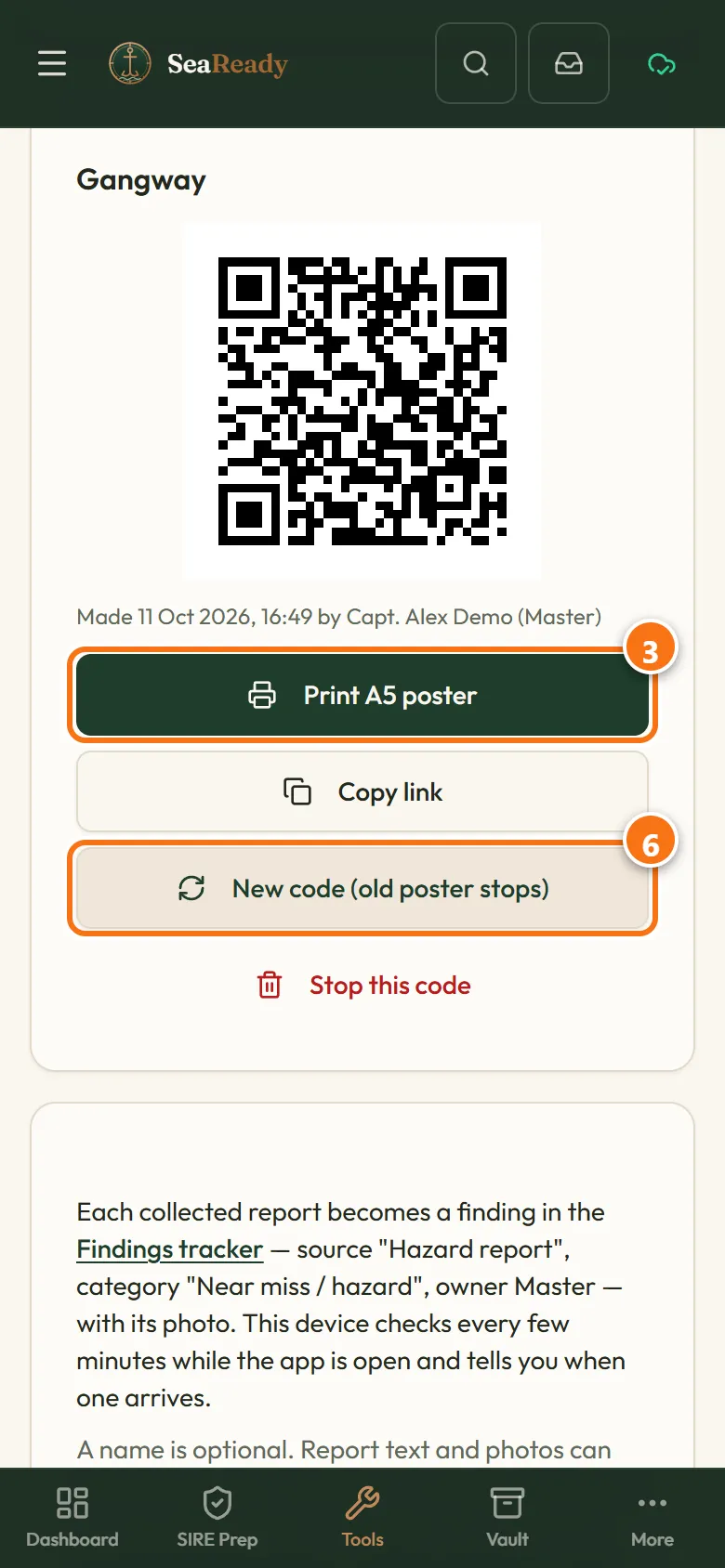
- Under "Where will this poster go?" type the place, for example "Gangway", and tap "Make QR code". Make one for each place you want a poster — up to 10.
- Tap "Print A5 poster" on a code and print it. Check the place, creation details and printed date. The poster says "See something unsafe? Scan to report — no login needed". Put it up where people pass.
- Someone scans the poster, writes "What did you see?", picks Low, Medium or High, adds a photo if they like, writes their name only if they want to, and taps "Send to the Master". Wait for the photo to finish preparing before sending. The reply confirms receipt of the request, but does not confirm delivery to the Master. Tell an officer directly about anything urgent.
- With the correct ship selected and online, accepted reports are added to the Findings tracker while the app is open, and a notice tells you; tap "Open" to go there. "Check for reports now" looks straight away.
- Poster damaged, photographed by the wrong people or no longer needed? Tap "New code (old poster stops)" and put up the new poster, or "Stop this code" and take it down.
Tips
- One poster at the gangway, one in the mess room and one in the engine control room covers most ships. The place on the poster tells you where the report came from even if the person leaves "Where?" blank.
- "Copy link" gives the same address as the QR code, for the ship’s notice board on a computer or a message to the crew.
- A name is optional and unverified. The report text or photo can still identify people; imported findings follow the ship file’s normal crew visibility.
What the inspector looks for
- A working way for anyone aboard to report hazards and near misses, and proof that the Master follows each one up, is part of the safety management system the inspector looks at. The findings tracker shows each report with its date, owner and close-out.
Limits and good to know
- The phone that sends a report needs internet — the ship’s Wi-Fi when it has internet, or in port. If the connection fails, delivery cannot be confirmed; the form keeps the draft on the open page for retry; reloading or closing can lose it. For emergencies raise the alarm and tell an officer now.
- A report is up to 1,000 characters and one photo up to 1 MB (the form shrinks bigger photos first). JPEG, PNG and WebP photos only.
- The public page does not reveal the ship’s name or confirm delivery. Active, stopped, unknown and unavailable codes receive the same reply. Network-derived, limited-lived counters support anti-spam controls; leaving the name blank does not remove identifying content from text or photos.
- Anti-spam limits apply to each network and poster; they are safeguards rather than a guaranteed worldwide cap. Up to 200 reports wait for collection, for up to a year. A stopped or replaced code no longer files reports. Collect reports regularly and use direct reporting when in doubt.
- The latest 200 code changes record who acted and when. The office dashboard receives report counts only through this feature, not report text.
Related pages
- Findings trackerPaste the last SIRE, RightShip or PSC report, split it into findings and close each one with an owner, a date, photos and a discussion thread.
- MessagesAnnouncements from your Master and messages from SeaReady in one inbox that reads offline, with read receipts and sign-to-acknowledge.
- Your ship (Settings → Ship)Set up or join your ship in Settings: join codes, ranks and rights, seats, handover, the company licence and crew groups on personal plans.
- Opening a ship: details and codesOpen a ship to see its health panel with dates, certificates within 90 days, ship type and facts, people aboard, link codes and the Make Master actions.
Use it in the app
The same page sits inside SeaReady under Help → Handbook and behind the “?” in the screen’s header, and it reads offline at sea.
More in Ship & crew
- Checklists (your own and the ship’s)Build checklists, let SeaReady AI turn your company form into one or take a ready-made one; fill them in on the phone and see what is due.
- Build your own checklistSections, questions and answer types, limits, what a bad answer needs, follow-up questions, how often it is due and who signs.
- Turn a company form into a checklistGive SeaReady AI a Word, Excel, CSV or PDF form, photos of a paper form or pasted text and check the labelled draft it makes.
- Fill in, sign and print a checklistFill in a checklist one section at a time, raise findings from bad answers, sign on your own phone, print the record and see its history.
- Master’s crew board (checklists)For the Master: every ship checklist with last done, by whom, next due and open failed items, and each person’s records and signatures.
- Ready-made checklists (library)Over 150 ready-made ship checklists in 15 groups, in our own words with the official reference: copy one, change it, schedule it and sign it.
- MessagesAnnouncements from your Master and messages from SeaReady in one inbox that reads offline, with read receipts and sign-to-acknowledge.
- Certificate vaultThe certificates your ship must carry with MISSING rows, survey windows from the anniversary, conditions of class and the crew matrix by rank.
- Rest hoursRecord your rest hours in ship’s time, see STCW/MLC breaches at once and print the record the inspector asks for.
- DrillsEvery drill your ship must hold with its SOLAS / ISPS interval, ship-type scenarios, attendance, the 25% crew-change check and lessons learned.
- Crew training progressOn a ship licence the Master sees what each crew member has practised and prints it for the inspector; everyone else sees their own.
- Handover by rankOne dated handover record per senior rank: sections by rank and ship type, the ship’s records pulled in, signed out, re-checked and accepted.
- Catch up (welcome back)Back after weeks away? See your role now, what changed, what is out of date, re-check old answers and get a fresh readiness score.
- Your ship (Settings → Ship)Set up or join your ship in Settings: join codes, ranks and rights, seats, handover, the company licence and crew groups on personal plans.
- LSA / FFA service trackerLife-saving and fire-fighting items for your ship and lifeboat type, next service worked out from the last, overdue alerts, who did what.
- BunkeringPlan each bunkering with the 90 % fill check, tick the before, during and after checks, log the BDN and samples, protest if needed, keep the history.
- Mooring line logRecord every mooring line and tail with its certificate, use, inspections and retirement limits, and get warned before a limit is passed.
- Ship/shore safety checklistOne record per port call: the ISGOTT parts for your tanker or the BLU Code list for a bulk carrier, timed repetitive checks, history and print.
- Permits, RA & toolbox talksPermits with timed gas readings, validity countdown, authorisation chain and clash warnings, plus risk assessments and toolbox talks, every stage dated.
- Record booksThe record books this ship keeps (ORB I and II, Cargo, Garbage, Ballast Water, ODS, fuel changeover): dated entries from templates, printable.
- Running hours and machinery logThe machinery of your ship type with dated counter readings, service tasks and the date each one falls due at the rate the machine runs.
- Nameplate troubleshooterPhotograph a machine nameplate and the AI tells you what the machine is, its ratings and its common faults.
- Printable formsPaper forms for your ship type: permits, pre-arrival, arrival/departure, pilot card, anchoring, heavy weather, cargo, garbage, standing and night orders.
- Medicine chest & medical logMedicine chest inventory by category, controlled drugs register with two signatures, private medical log, TMAS card, MFAG antidotes and the medical guides.
- Weather & portsA 3-day wind, wave and swell forecast for any port or position, kept on the phone for offline use, plus links to official ship records.